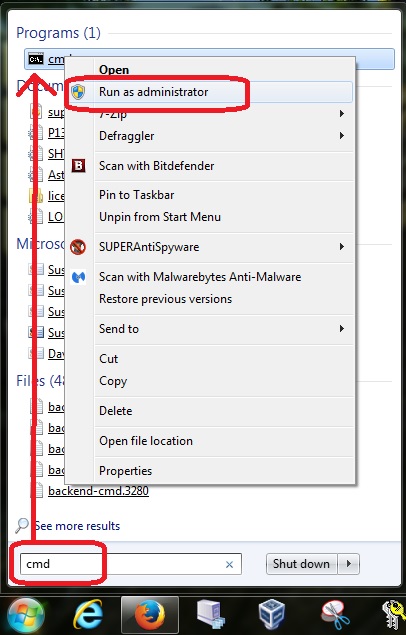
|
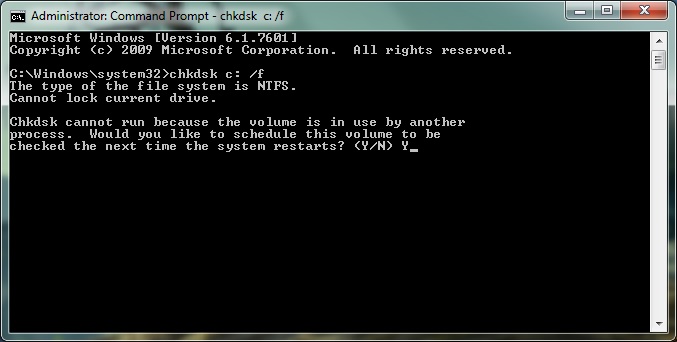
You then enter the following command to schedule a CHKDSK for next reboot:
Capital letters don’t matter, but you do need to use the correct slash (under the ?). You will then get a warning as follows:
Chkdsk cannot run because the volume is in use by another process.
Would you like to schedule this volume to be checked the next time
the system restarts? (Y/N)
Just type ‘Y’ and press Enter. This will schedule a CHKDSK for the next time your computer boots into Windows. To run the CHKDSK test of your C: drive, all you have to do is shutdown Windows and start it back up again. When the screen comes up about a CHKDSK is going to run or press cancel within 10 seconds, just let it run.
Generally we watch the CHKDSK progress to see what repairs are being done, plus to watch to see if a lot of files end up being deleted. This is the dangerous part because if your drive has major issues, running CHKDSK can end up deleting a lot of important Windows files. This is why we cannot stress enough that you have a full system backup BEFORE attempting to run a CHKDSK scan of your Windows drive.
|